Looking at the WXR-700 features
The Samedi Dimanche WXR-700 is an FM synthesis software synthesizer. It’s currently available in VST3 format. We are working on a Mac version as well. Let’s look at the different features.
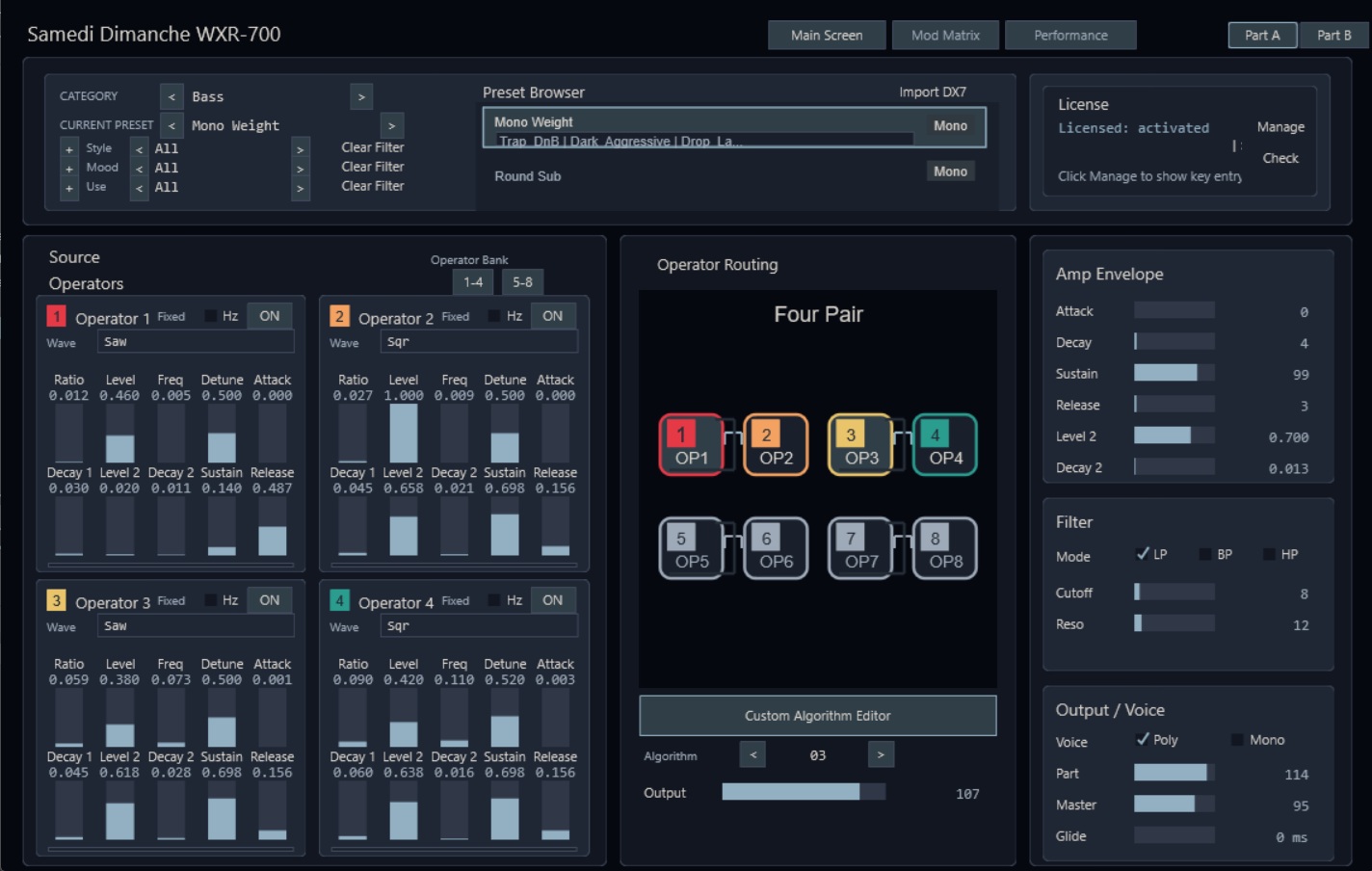
Factory presets
The plug-in synthesizer has a factory preset system. It has categories such as lead, with various different presets within each category.
Because of the characteristics of this software, we tried to go with some presets that sound fairly similar to the sort of presets you would have got on a hardware FM synthesizer like the famous DX7 and things like that. Although the presets and the synthesizer are not an exact emulation of anything. It is different, but it can be used in a similar way and is basically in the same kind of category.
For people who really want to use the exact sounds from their 1980s hardware FM synthesizer, there is an option to do that as well. You can go to the import option and it will import the hardware presets you want to use. If you have any of those — and even if you don’t — you can download quite a lot of them from the internet, including many of the famous 1980s FM presets.
Operators
It has four different operators visible at any one time, but there are actually eight operators in total — so it’s an eight-operator synthesizer.
To go to operators 5–8 you click on “5 to 8” on the GUI. If it’s on “1 to 4”, that shows you operators 1, 2, 3 and 4.
Every operator has its own:
- Ratio
- Level
- Independent detune
- Amplitude envelope (attack, decay, sustain, release)
- Waveform selection
You can choose the waveform for each operator from the dropdown menu. This one is currently set to saw; you can change it to sine or square. It doesn’t have all the various waveforms that some hardware FM synthesizers have, but it does have quite a few different options to choose from — a fairly decent set to get started with.
Ratios
The ratio affects the pitch of the operator. A whole-number ratio like 3:1 or 2:1 would be more harmonic and more musical, whereas if you have a slightly strange value for the ratio — like 0.012, 0.12, or any random value — then the sound starts getting a bit more strange and unusual. It’s up to the user to choose what values they want for each, but certain values will obviously be needed for certain types of sounds.
Algorithms
By default it has an algorithm loaded up. There’s always an algorithm loaded, but you can load various different algorithms.
If we change the algorithm, we can change the sound even if it stays on the same preset. We change the algorithm number by clicking through them in the VST3. The sound changes because the different algorithms connect the different operators in a different way.
The diagram of the operator routing on the VST3 screen shows you what is affecting what. An algorithm shown in that panel might have operator 2 going to operator 5, and also some other linkages between operators 3 and 4. If we move to a different algorithm, it’s got a different configuration — for example, all lined up in series (1, 2, 3, 4, 5) in algorithm 15. You can whiz through the different algorithms quickly.
Custom algorithm editor
If you think “there are only 20 algorithms and that’s not enough — I want a different algorithm”, you can do that by creating your own. Click the Custom Algorithm Editor button and it takes you to a different page where you can set up a new algorithm that isn’t a factory standard one. It can be whatever you want — you activate and deactivate the different connections to configure it however you like using the interface.
If you do it all and then think “oh no, this has all gone wrong” — no problem at all. You can just reset it and it wipes the algorithm completely so you can start from scratch.
You can also lock it if you want to. So if you want to prevent yourself or anyone else from accidentally ruining and messing up the custom algorithm you’ve created, just lock it — and you can unlock it again to change it later.
Interface tabs
The different screens can be accessed by a row of buttons at the top, one for each interface tab/screen:
- Main screen — the first tab.
- Modulation algorithms — the second tab.
- Performance — an additional screen with different things on it for more live-performance-oriented controls.
That’s a quick tour of the main features.